

Step 1: Access the "Entries" Option
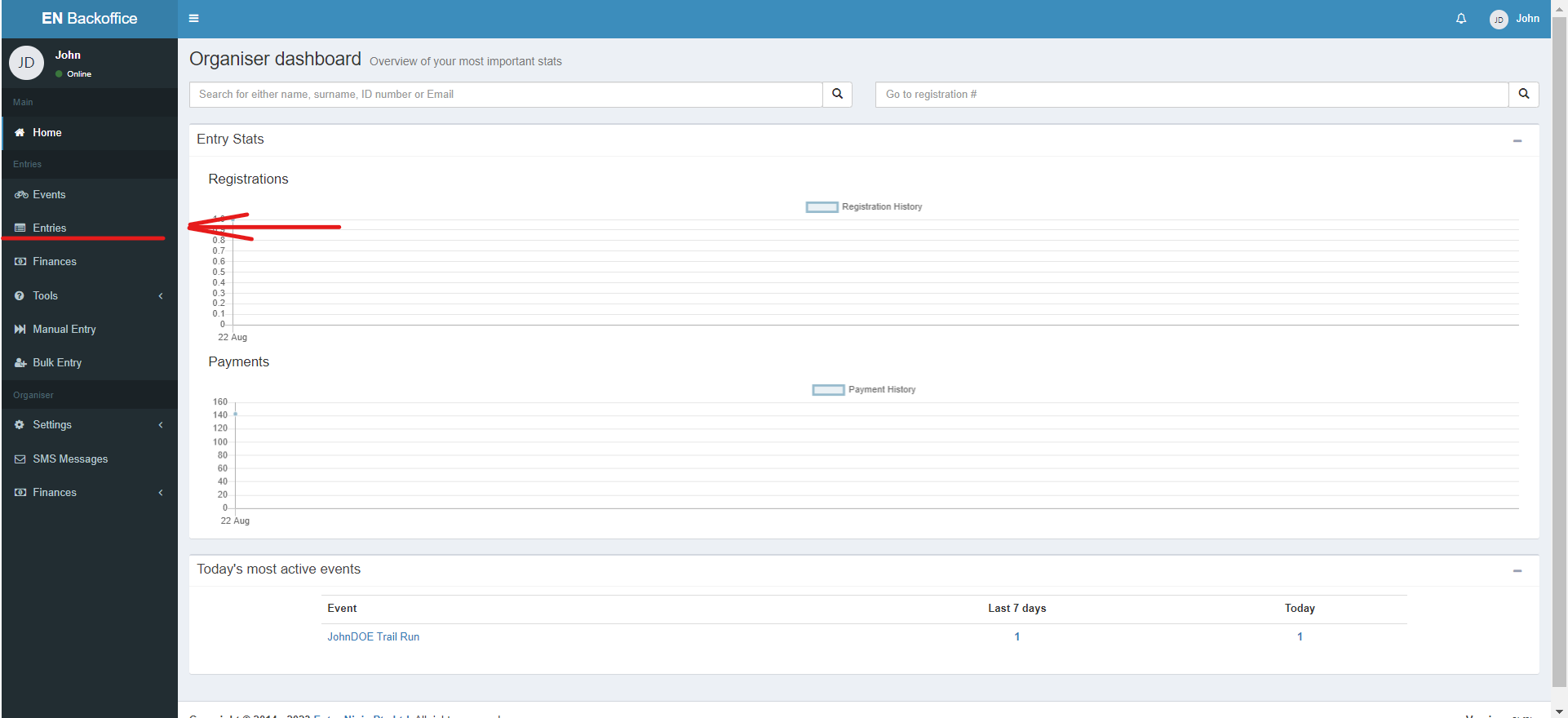
1. Log in to your Back Office.
2. On the left side of your screen, locate and click on the "Entries" option in the Menu Bar.
Step 2: Use the Search Bar
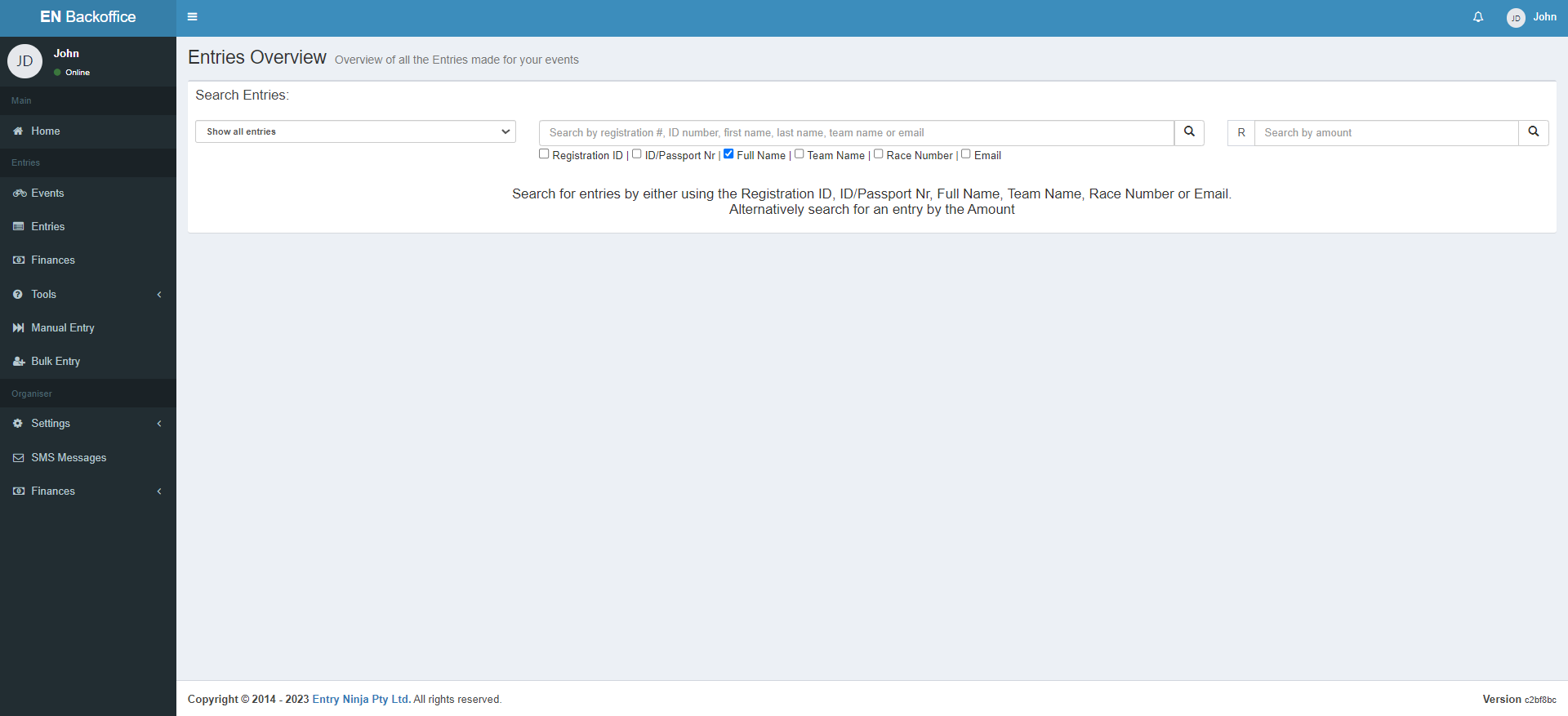
1. After clicking "Entries," you will be directed to the Entries page.
2. Look for the search bar provided on this page.
Step 3: Apply Filters (Optional)
1. Depending on the available filters, select the appropriate filter you wish to use. For example, you might have filters for:
- Name and surname
- ID number
- Other relevant details
Step 4: Search for Entries
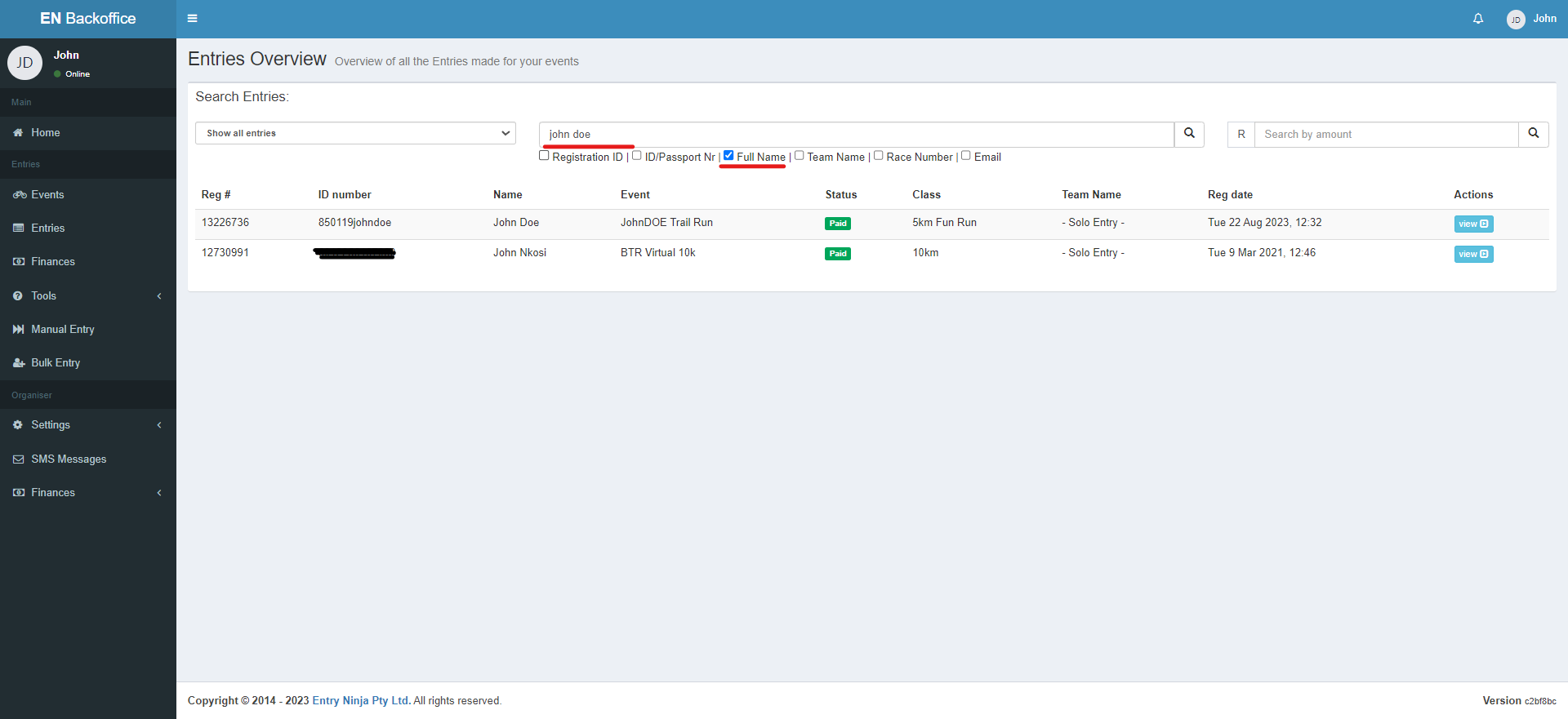
1. In the search bar, type in the relevant details based on the filter you've activated.
- If you've selected the name and surname filter, enter the person's name and surname.
- If you've chosen the ID number filter, type in the individual's ID number.
Step 5: Perform the Search
1. After typing in the necessary details, press the "Enter" key to perform the search.
Step 6: View Entered Events
1. The system will display a list of entries that match the search criteria for the individual.
2. This list will include entries for past, present, and future events that the individual has participated in.