
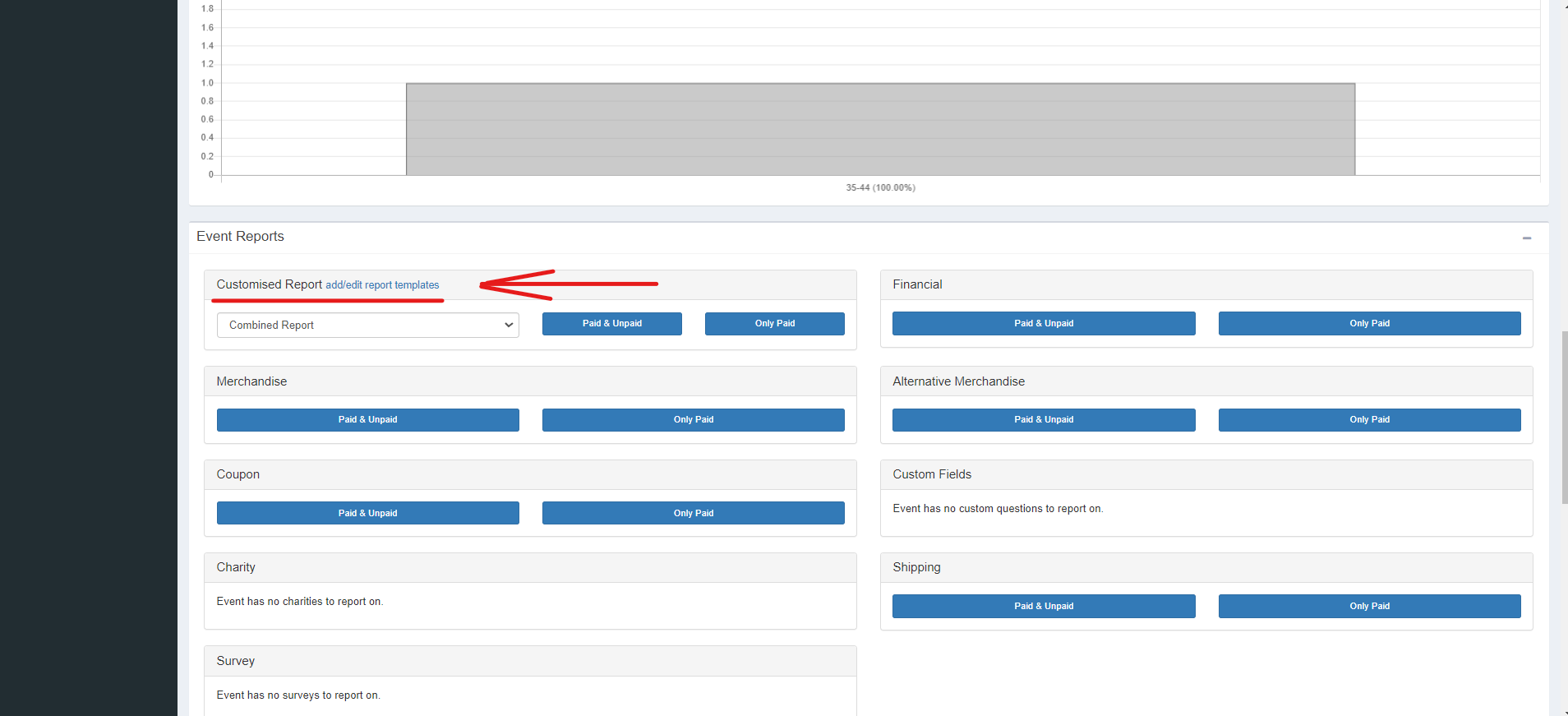
Step 1: Access Event Reports Customization
1. On the Event Overview page, scroll down to the "Event Report" section.
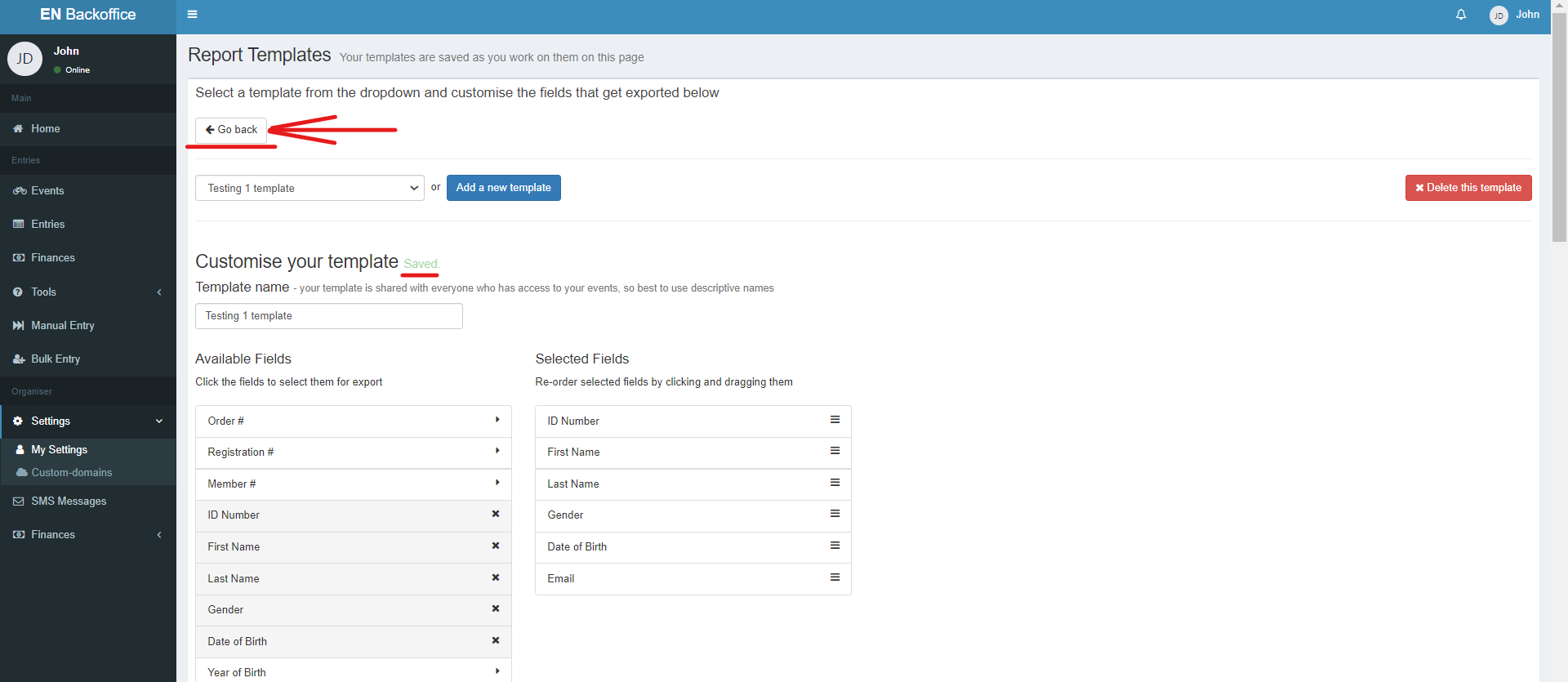
2. Click on the "Add/Edit Report Templates" option to access the report template page.
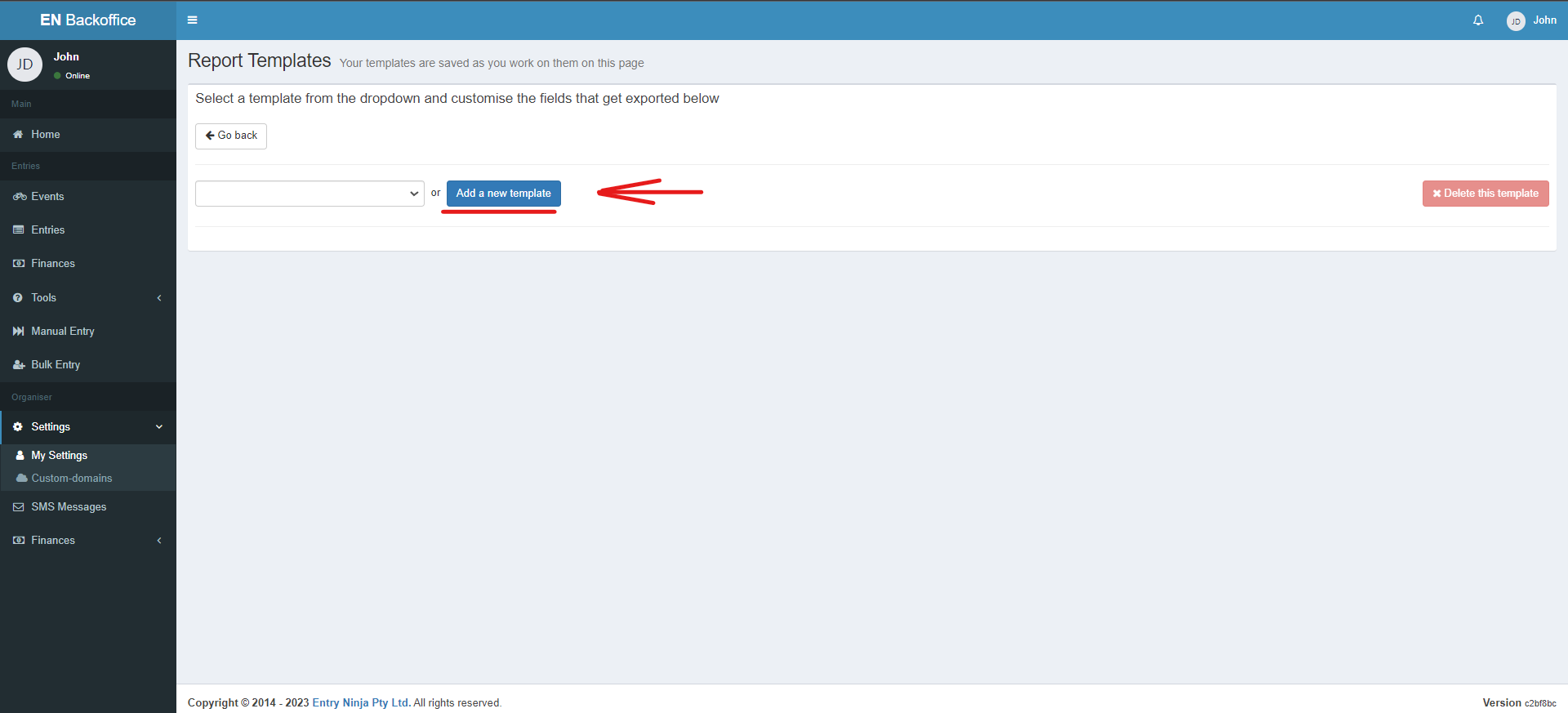
Step 2: Add New Template
1. On the report template page, click the "Add New Template" button.
2. Edit the template name to help identify your customized report template.
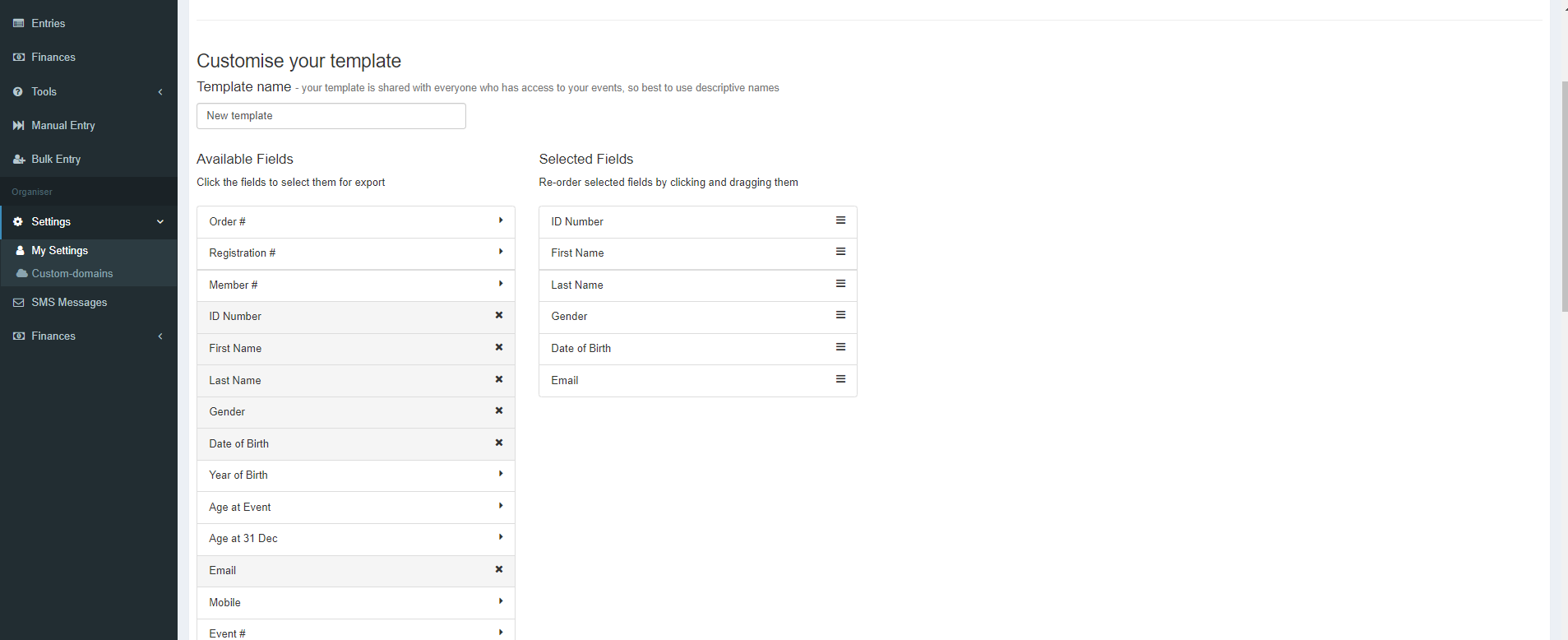
Step 3: Select Fields for the Template
1. In the "Available Fields" section, select each field that you want to include in your customized report template.
2. Selected fields will appear under the "Selected Fields" section.
3. Remove unwanted fields by clicking the cross next to each field.
Step 4: Save Changes
1. All changes are auto-saved.
2. When ready, click the "Go Back" button to return to the Event Overview page.
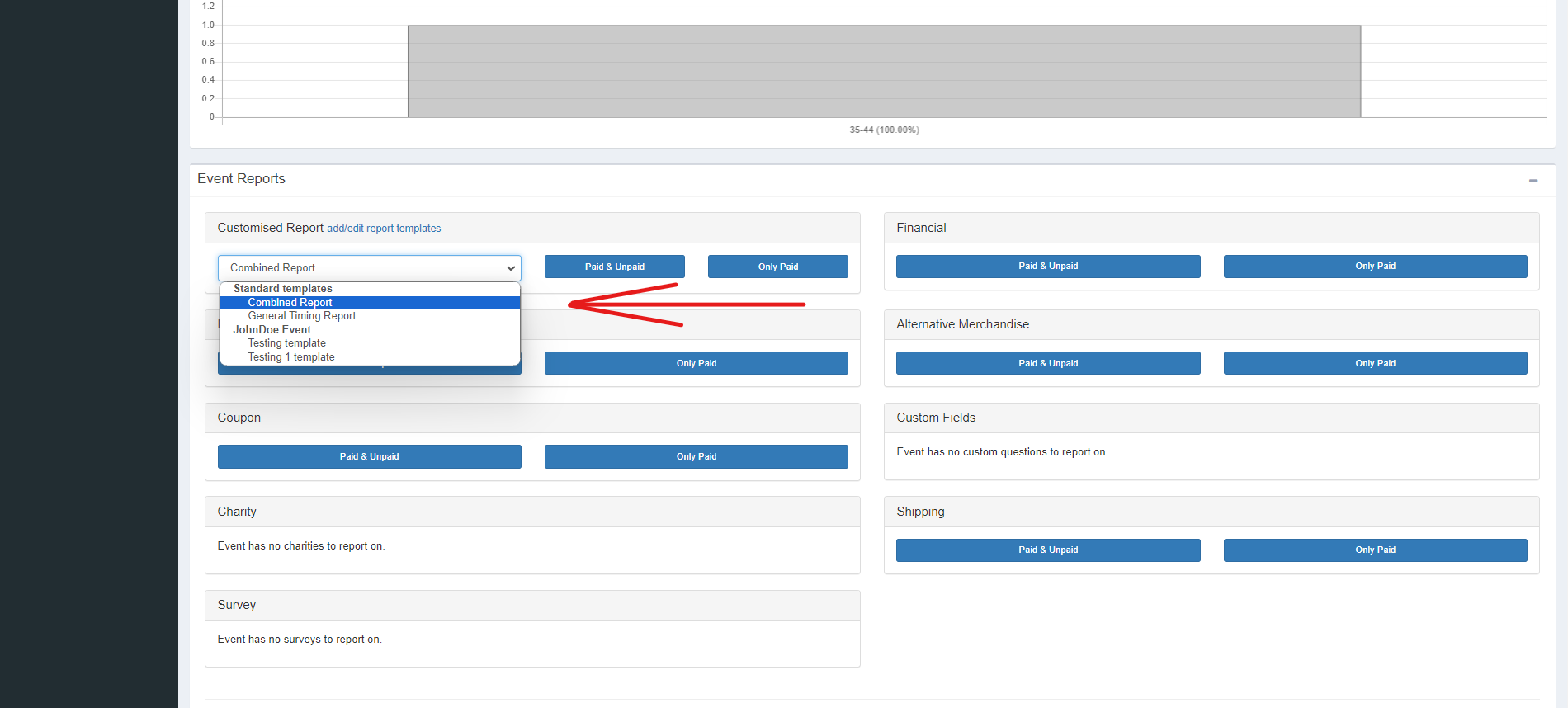
Step 5: Choose Customized Report
1. On the Event Overview page, in the "Event Report" section, use the drop-down to select the customized report template you created.
2. The customized report template will display the selected fields.