

Step 1: Access the "SMS Message" Option
1. Log in to your Back Office.
2. On the left side of your screen, locate and click on the "SMS Message" option in the Menu Bar.
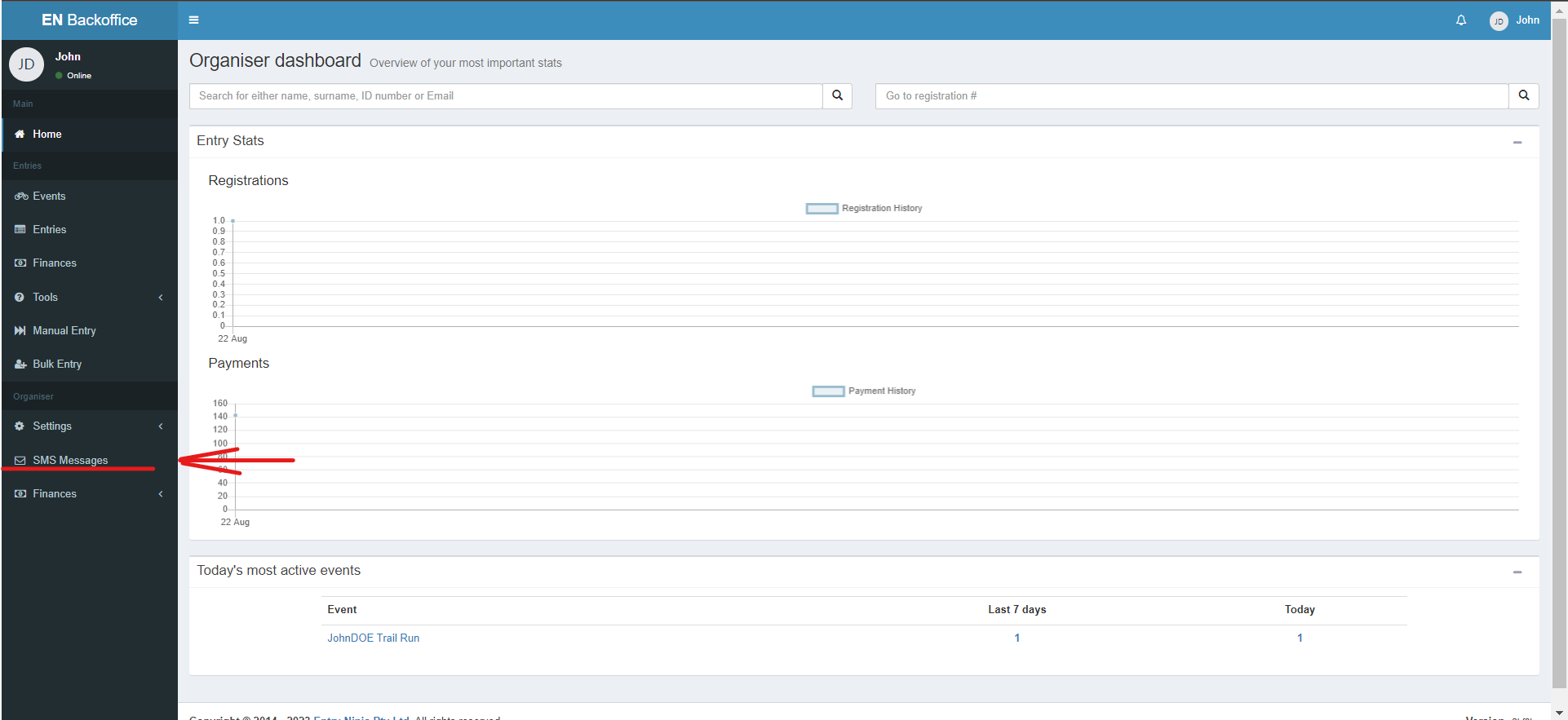
Step 2: Navigate to "Create SMS Message"
1. After clicking "SMS Message," you will be directed to the SMS Message page.
2. Look for the "Create SMS Message" option and click on it.
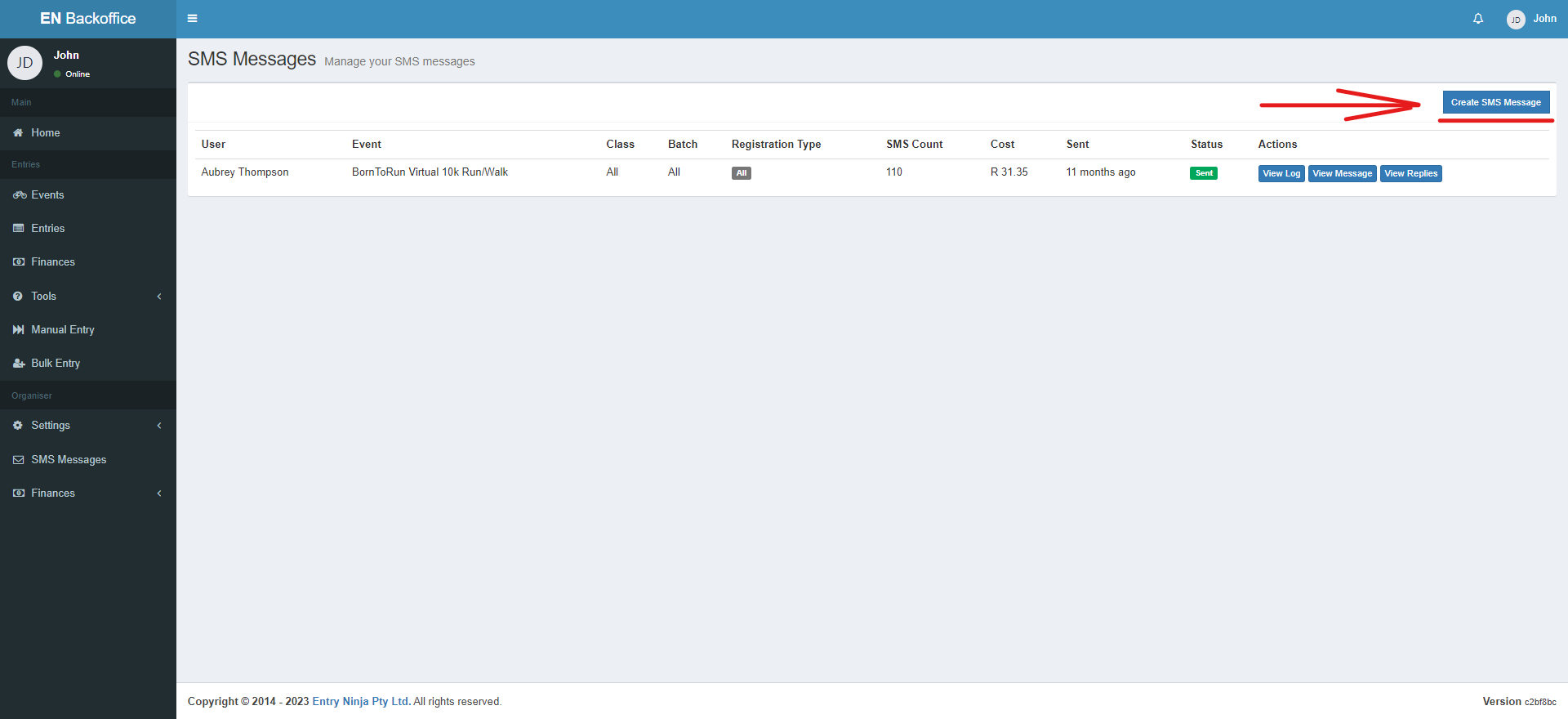
Step 3: Prepare SMS Message
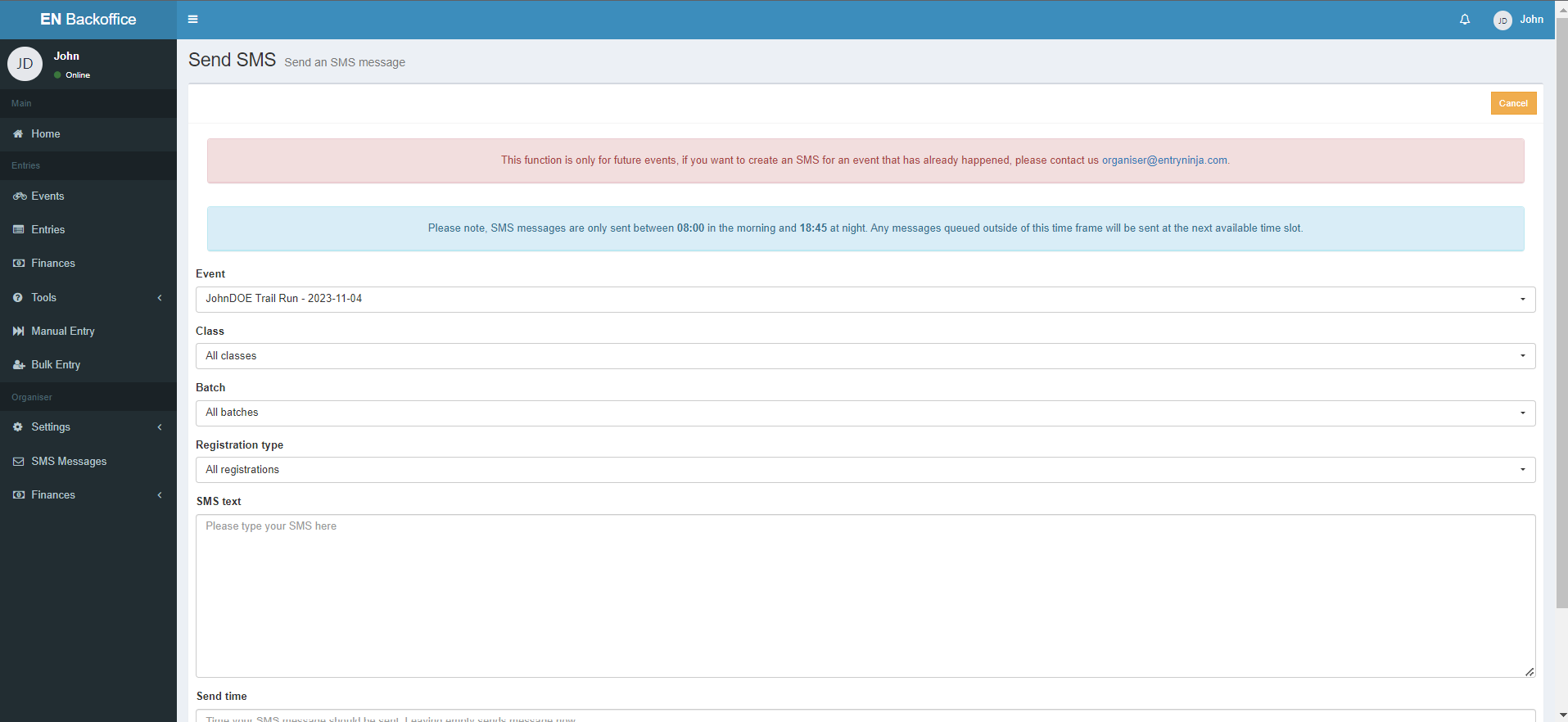
1. Clicking "Create SMS Message" will take you to the "Send SMS" page.
2. On this page, you will find options to customize your SMS:
- Choose the event, class, and batch you want to send the SMS to.
- Specify whether you want to send to paid and/or unpaid entries.
- Craft your text message.
- Set the time for sending the SMS. (Note: Sending is restricted between 18:00 in the evening and 08:00 in the morning.)
Step 4: Queue SMS Message
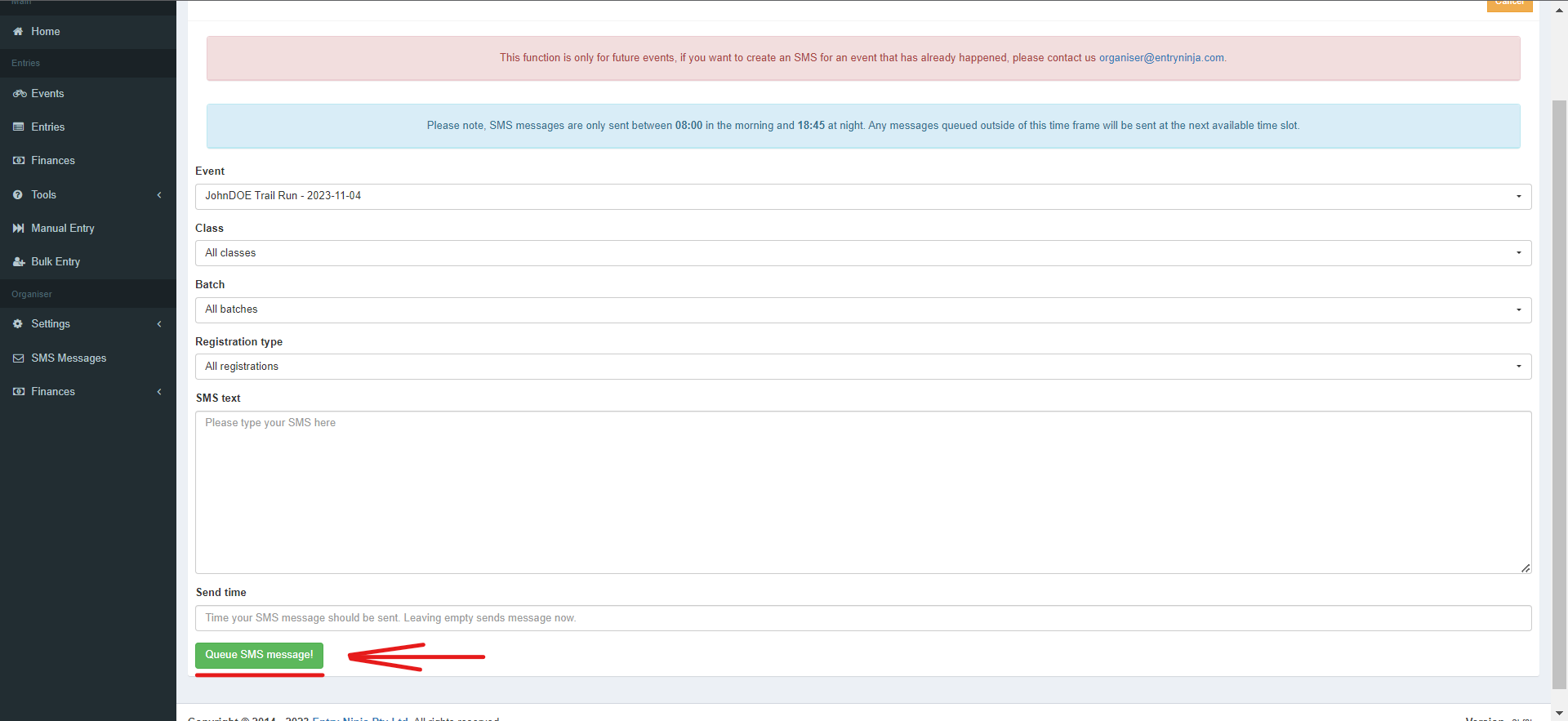
1. After filling in the details for the SMS message, click the "Queue SMS Message!" button.
2. The system will confirm that the SMS message has been queued for sending.
Step 5: Verification
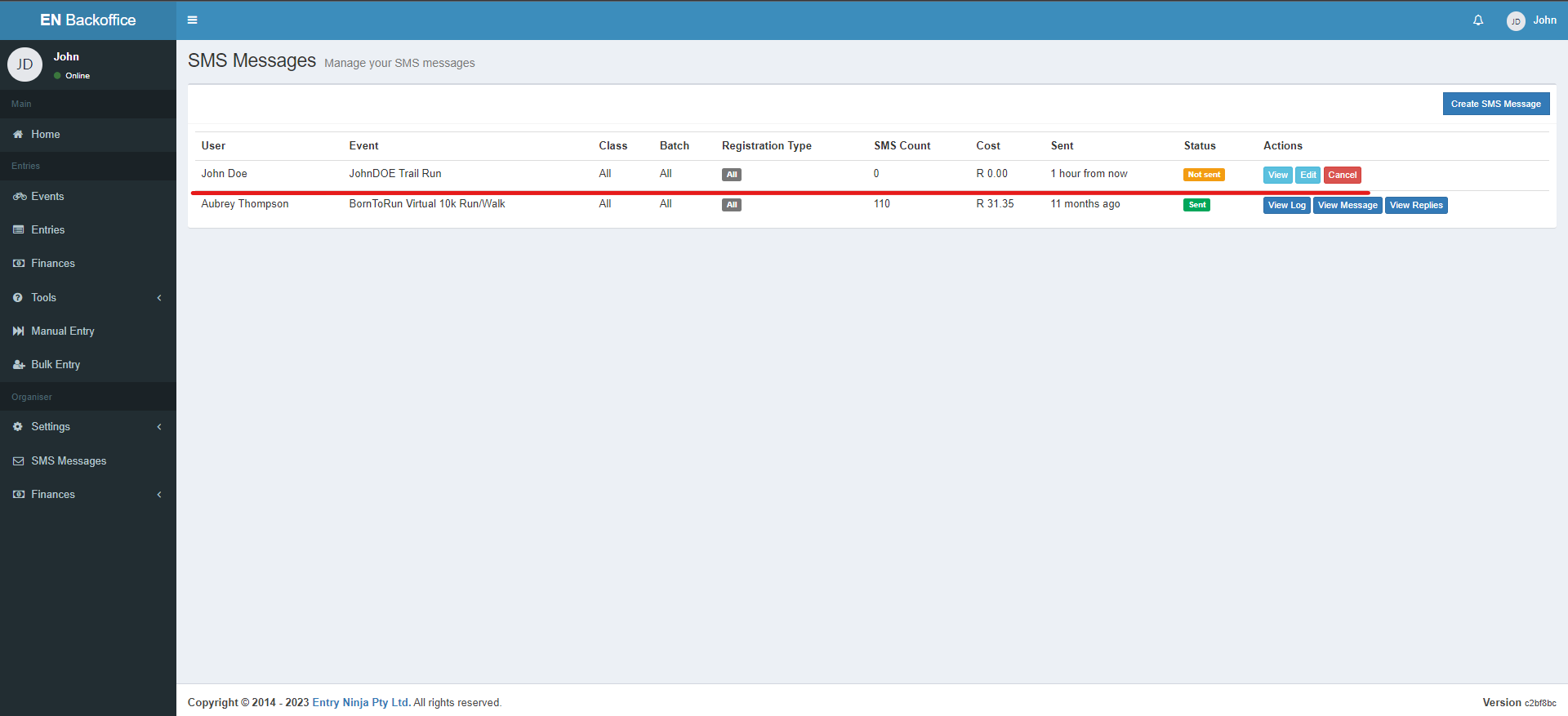
1. You will be redirected back to the SMS Message page.
2. Here, you can see the queued SMS message along with the scheduled sending time.
Step 6: Sending
1. At the specified time, the system will automatically send out the queued SMS to the selected recipients.