

Step 1: Access the "Settings" Option
1. Log in to your Back Office.
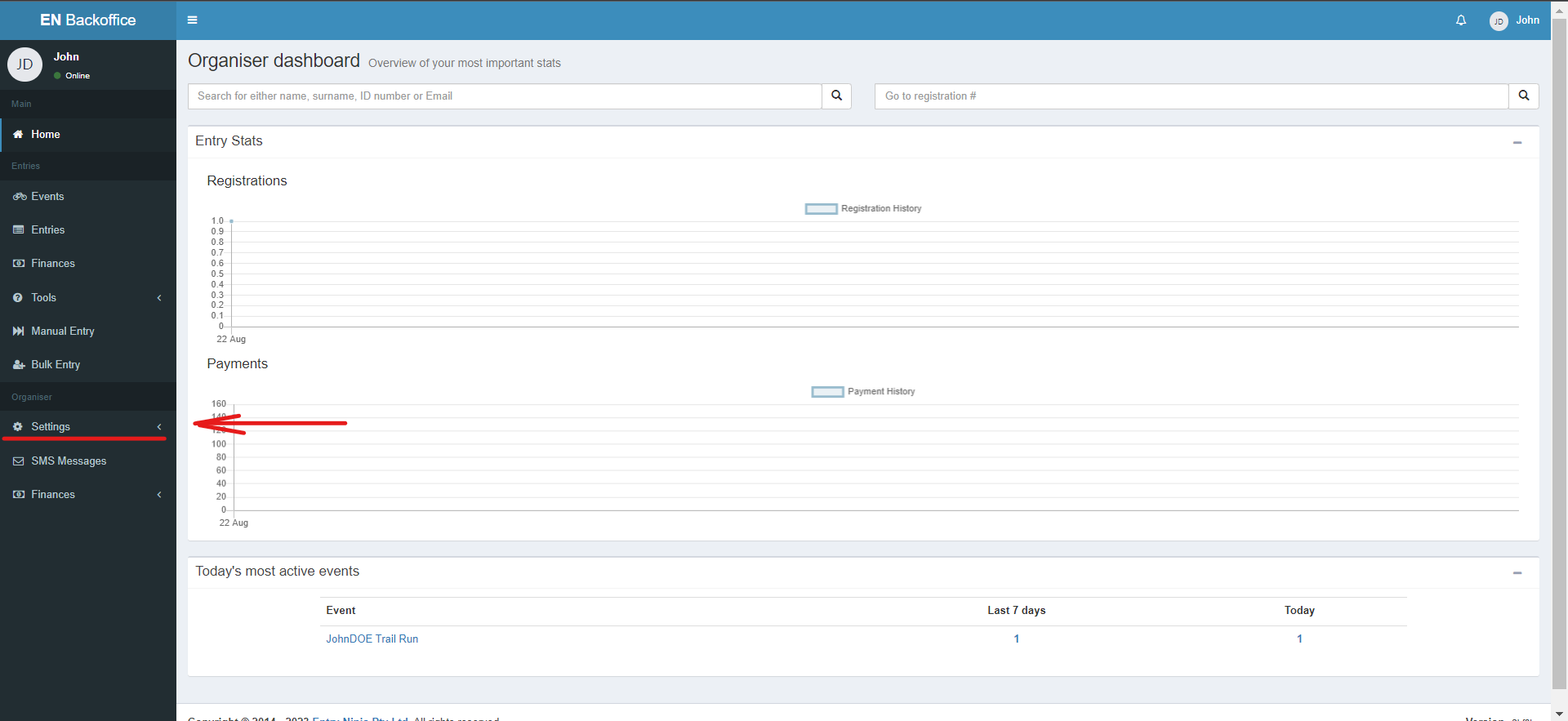
2. On the left side of your screen, locate and click on the "Settings" option in the Menu Bar.
Step 2: Navigate to "My Settings"
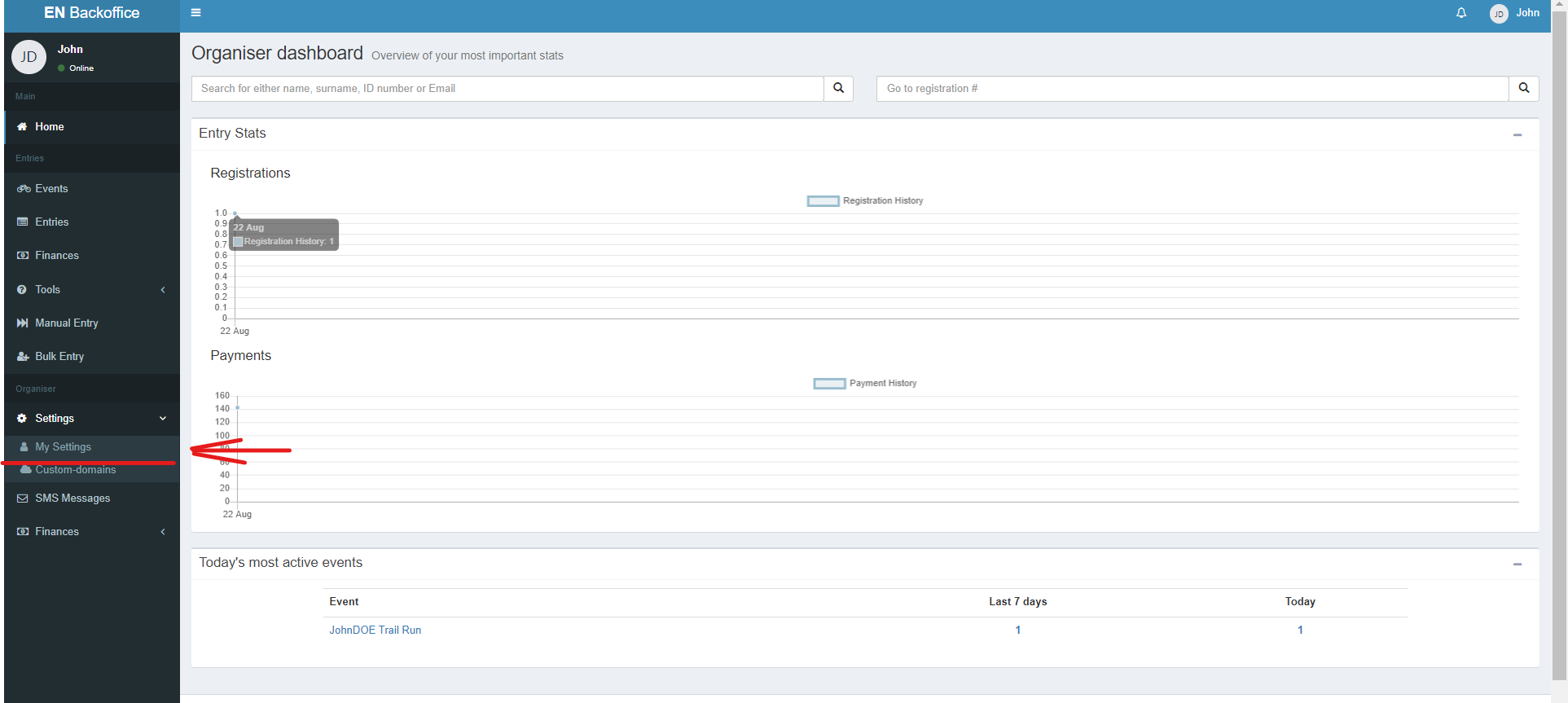
1. After clicking "Settings," a dropdown menu will appear.
2. From the dropdown, select the "My Settings" option. This will direct you to the Organisers page.
Step 3: Choose Organiser Profile
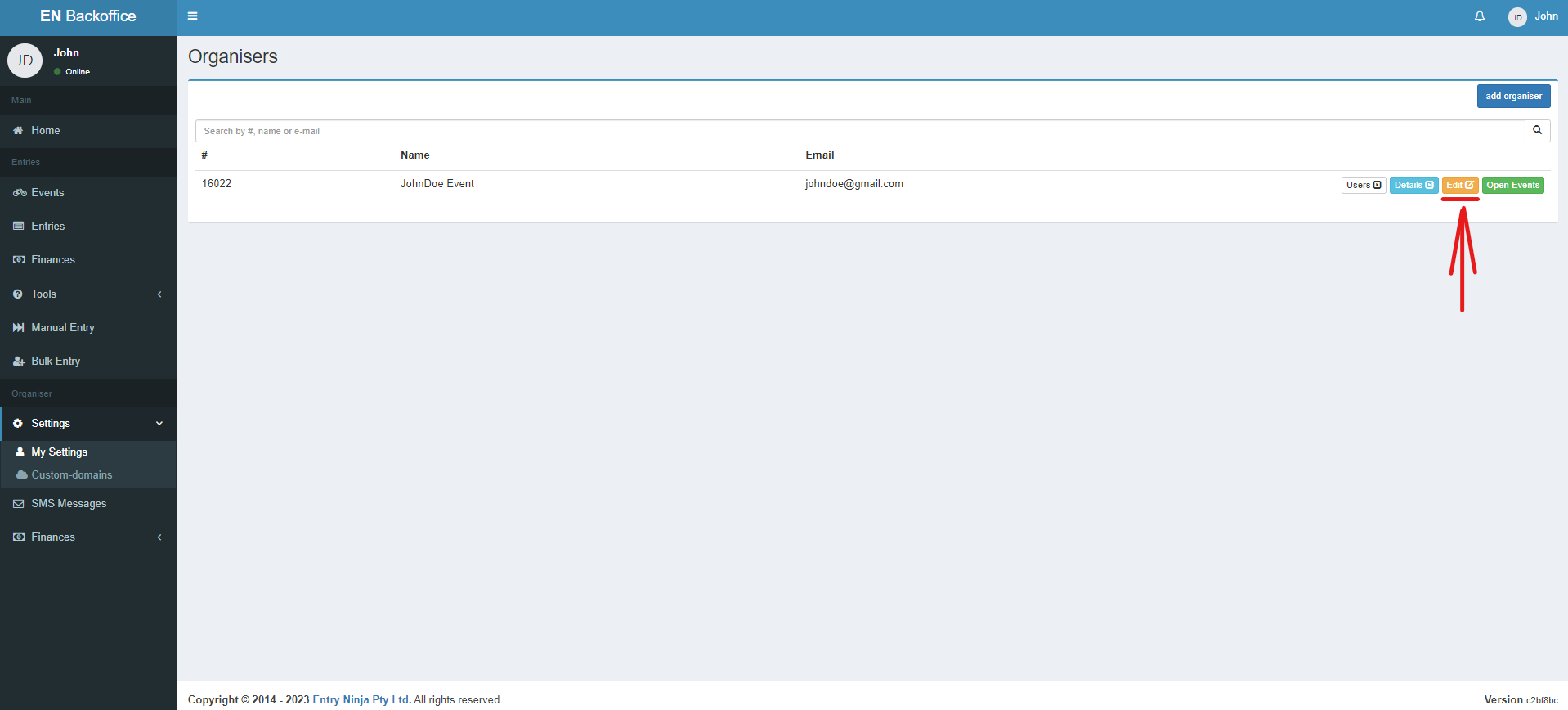
1. On the Organisers page, identify the organizer profile for which you want to update indemnity and terms & conditions.
2. Click on the "Edit" option next to the relevant organizer profile.
Step 4: Access the Edit Organiser Page
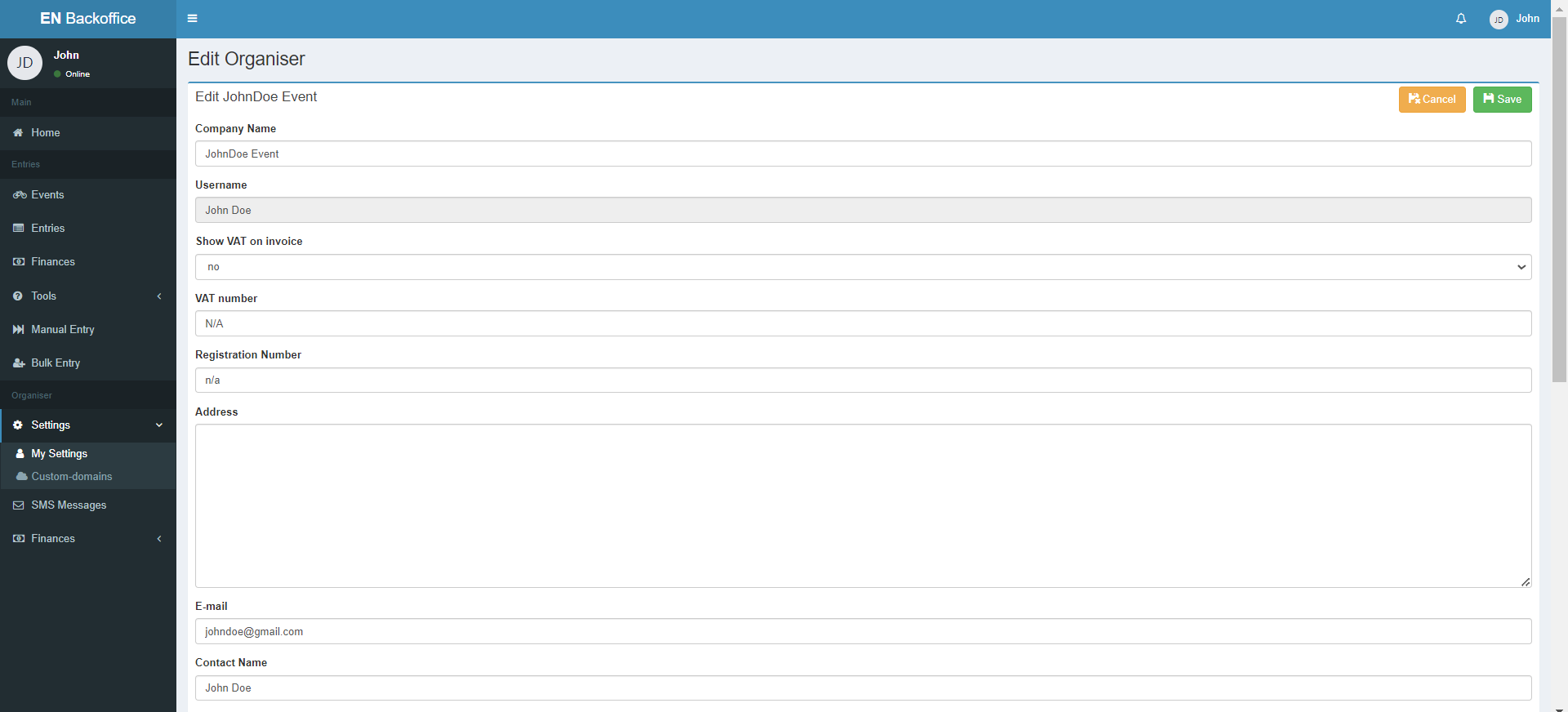
1. Clicking "Edit" will take you to the Edit Organiser page.
2. Scroll down the page until you reach the "Terms and Conditions" section.
Step 5: Update Terms and Conditions
1. Within the "Terms and Conditions" section, you'll see an area where you can either add or replace the standard terms with your own company's terms.
2. Encourage organizers to include their event-specific indemnity, refund, and cancellation terms in this section.
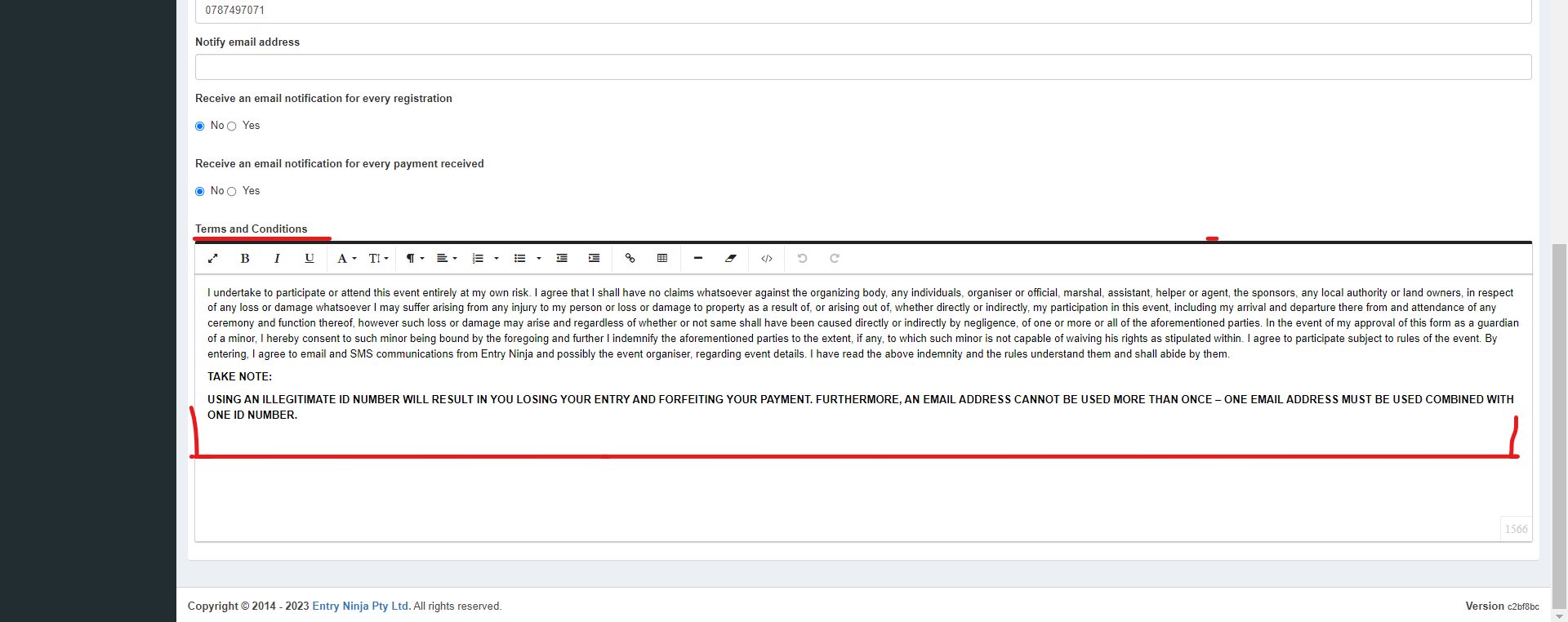
Step 6: Enter Event-Specific Indemnity
1. Remove the standard terms, if necessary, and input your company's event-specific indemnity details.
2. Include any relevant language to protect the event and its participants.
Step 7: Add Refund and Cancellation Terms
1. Encourage organizers to add their event's refund and cancellation terms if applicable.
2. Make sure these terms are clear and comprehensive.
Step 8: Save Changes
1. After updating the terms and conditions, scroll back to the top of the page.
2. Click the "Save" button to apply your changes.