
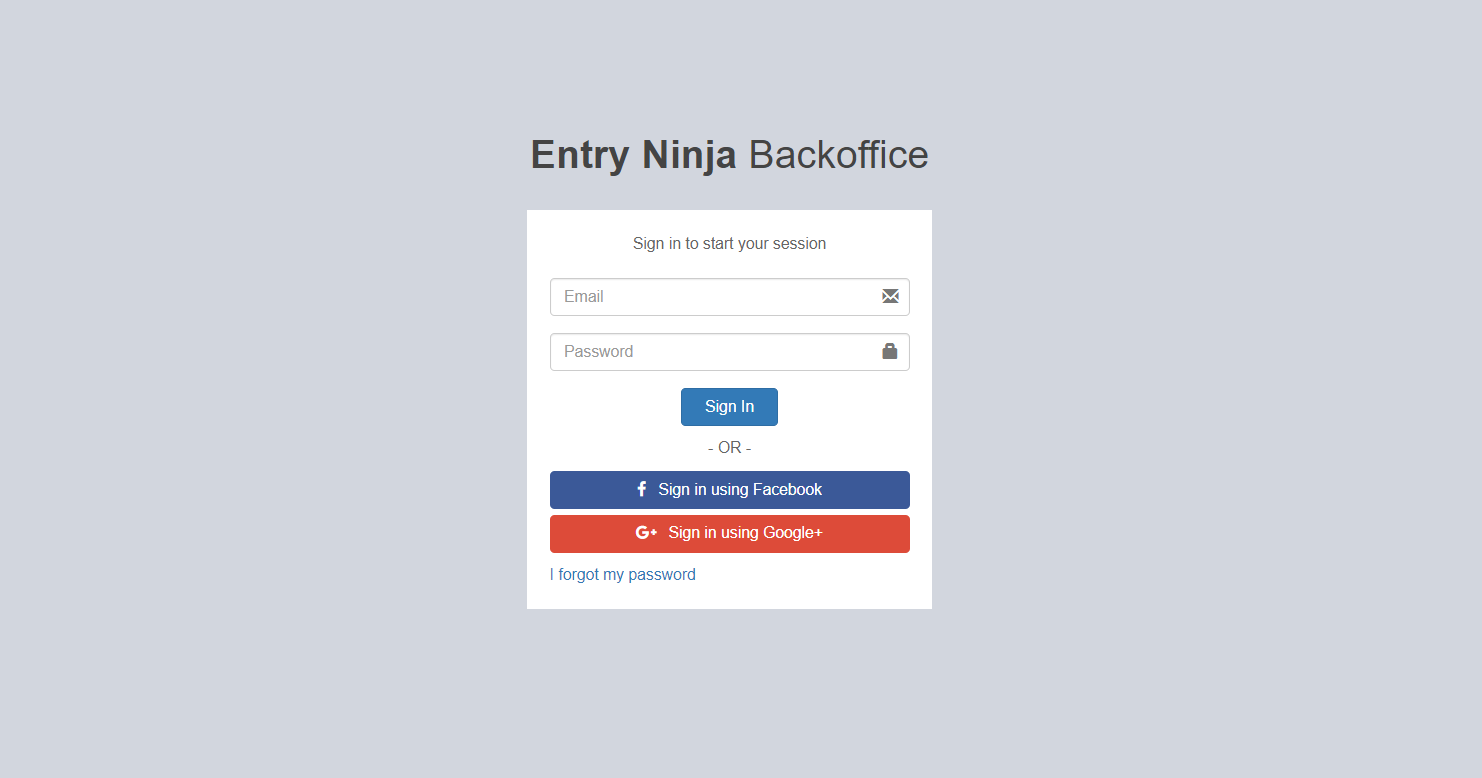
Step 1: Log into the Back Office
Ensure that you are logged into the Back Office of Entry Ninja.
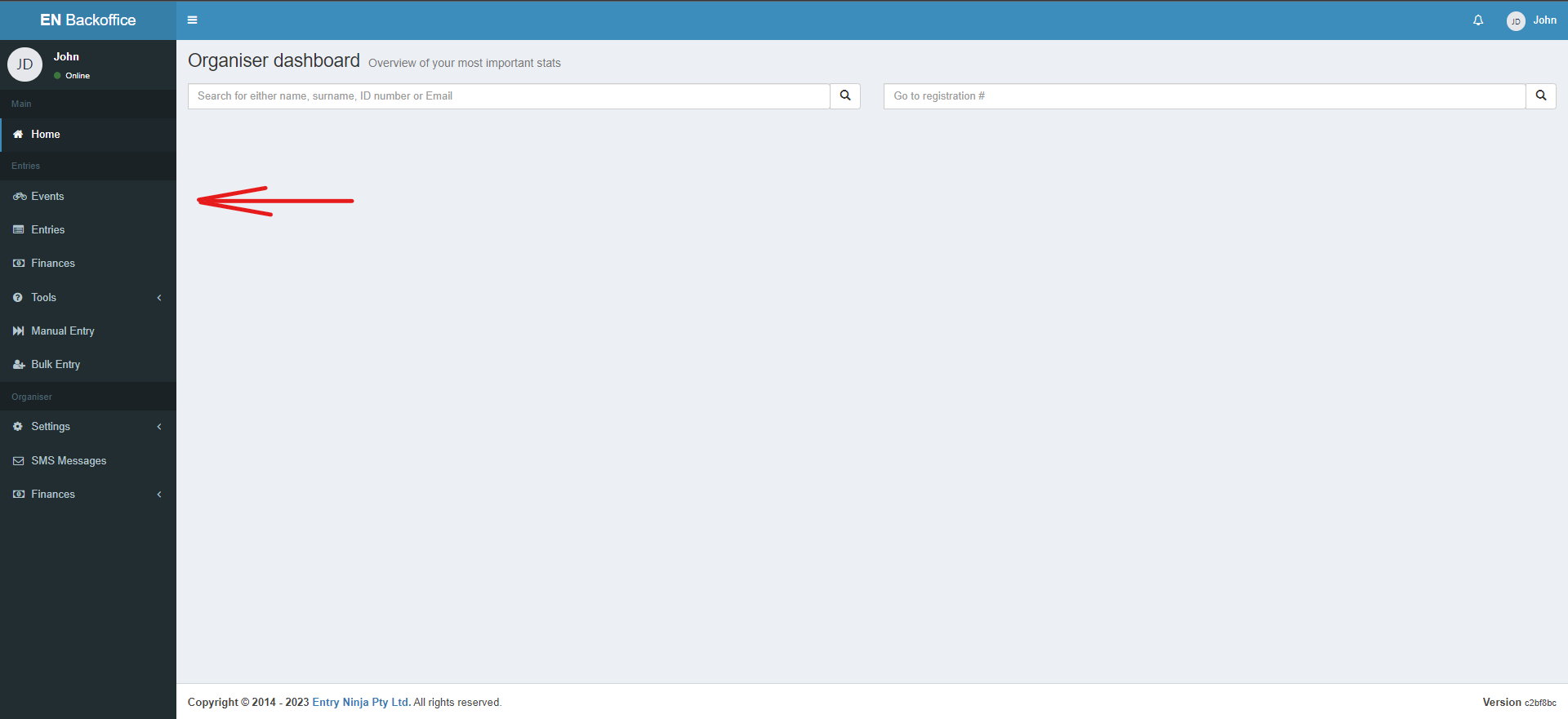
Step 2: Navigate to the Event
Find and select the event for which you want to manage substitutions, upgrades, and downgrades.
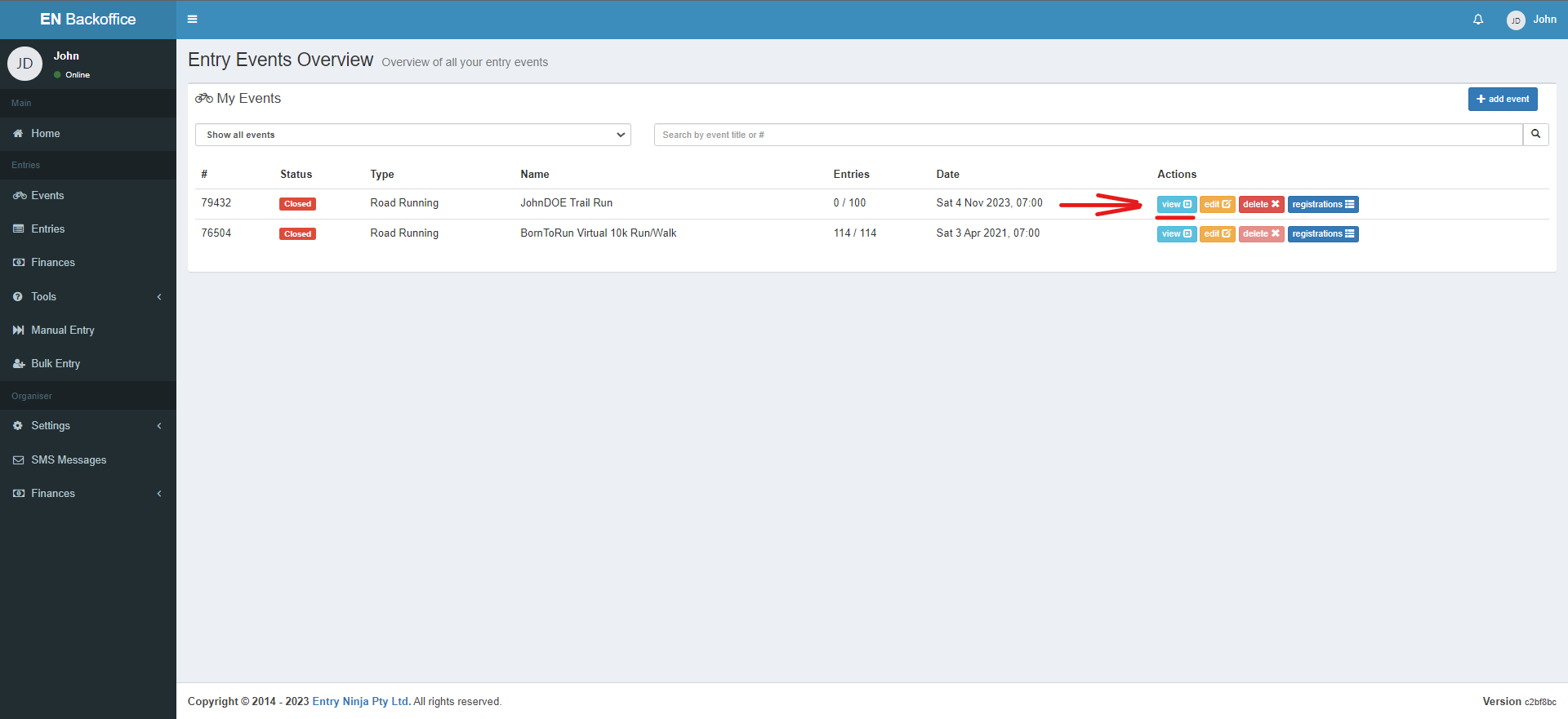
Step 3: Access Event Overview
Click on "View" to access the event overview page.
Step 4: Access Event Tools
Scroll down to the "Event Tools" section on the event overview page.
Step 5: Access Changes and Substitutions
Click on the "Changes and subs" option within the Event Tools section.
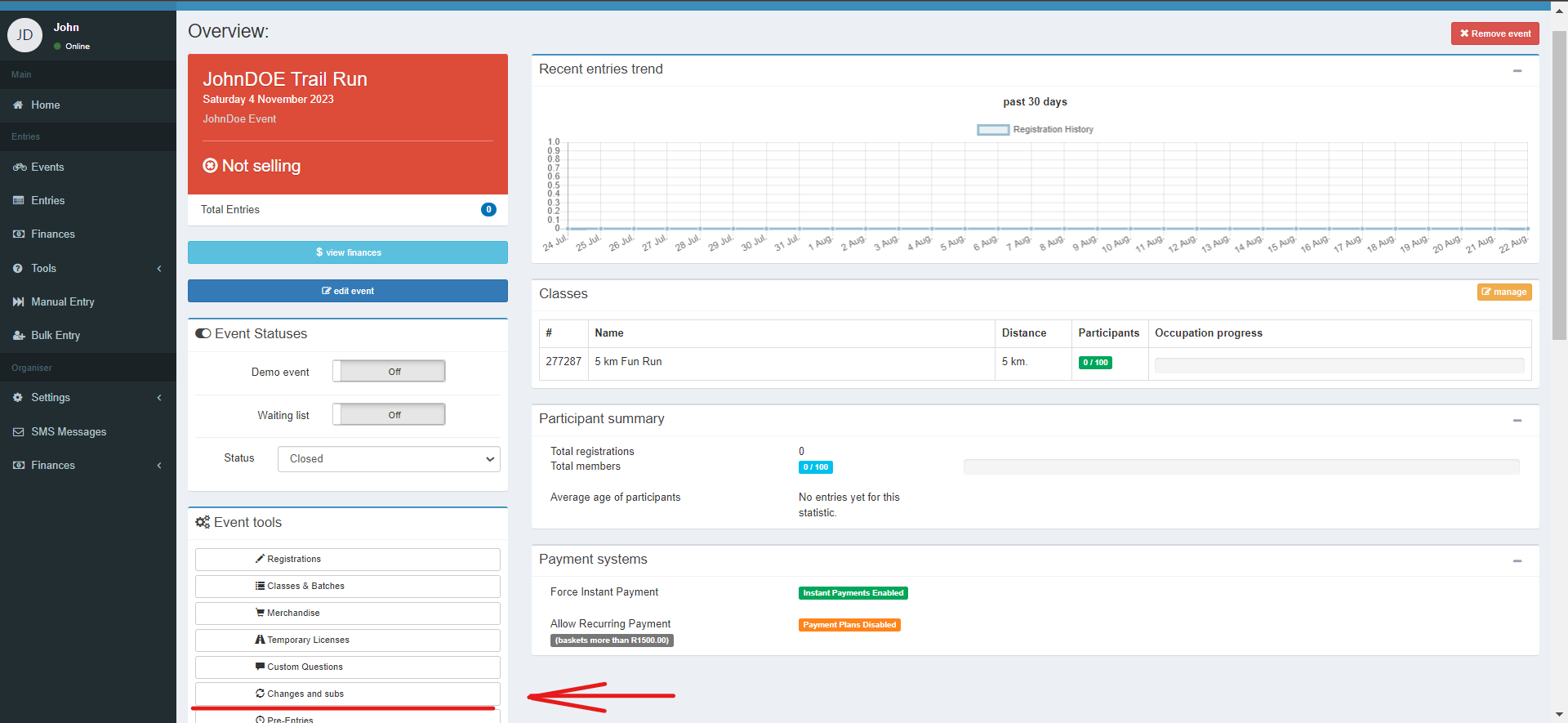
Step 6: Manage Substitutions, Upgrades, and Downgrades
You will be taken to the changes and substitutions page. Here, you can enable or disable substitutions, upgrades, and downgrades for the event participants.
Step 7: Edit Changes and Substitutions
Click on the "Edit changes and substitutions" button on the changes and substitutions page.
Step 8: Update Front-End Options
On the next page, you'll be able to update the options available to participants on the front end.
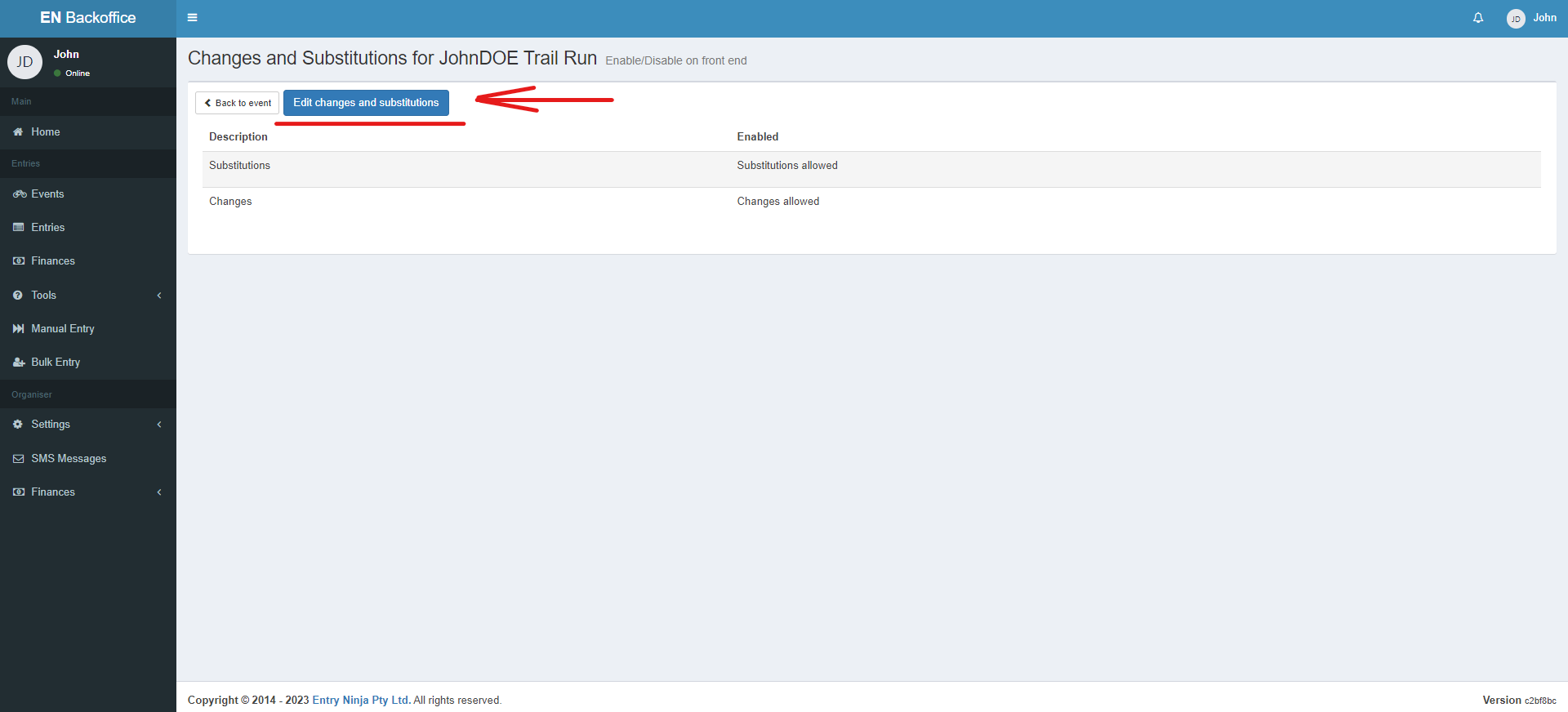
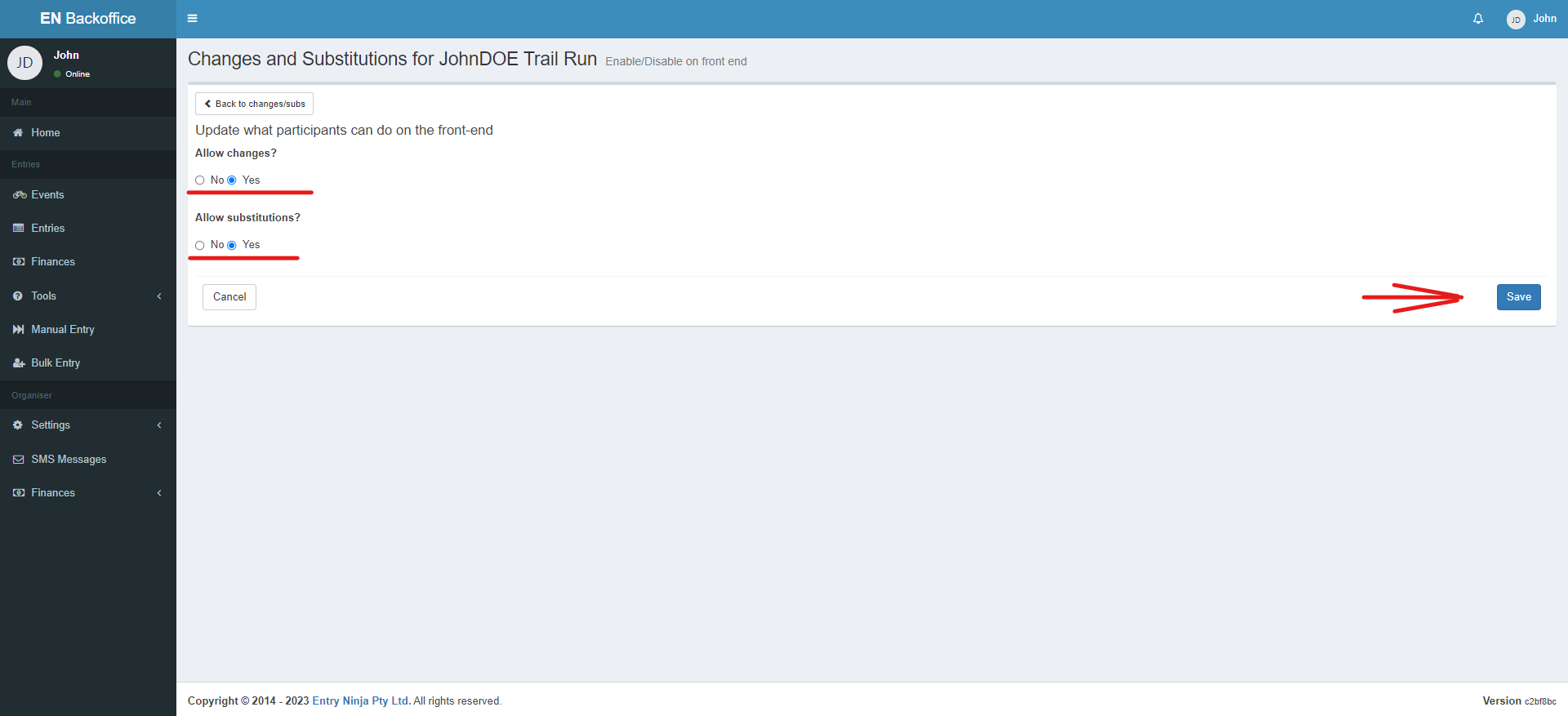
Step 9: Allow Changes
Adjust the "Allow changes" setting to enable or disable any changes for participants.
Step 10: Save Your Changes
Once you've made the necessary adjustments, click the "Save" button to save your changes.\