

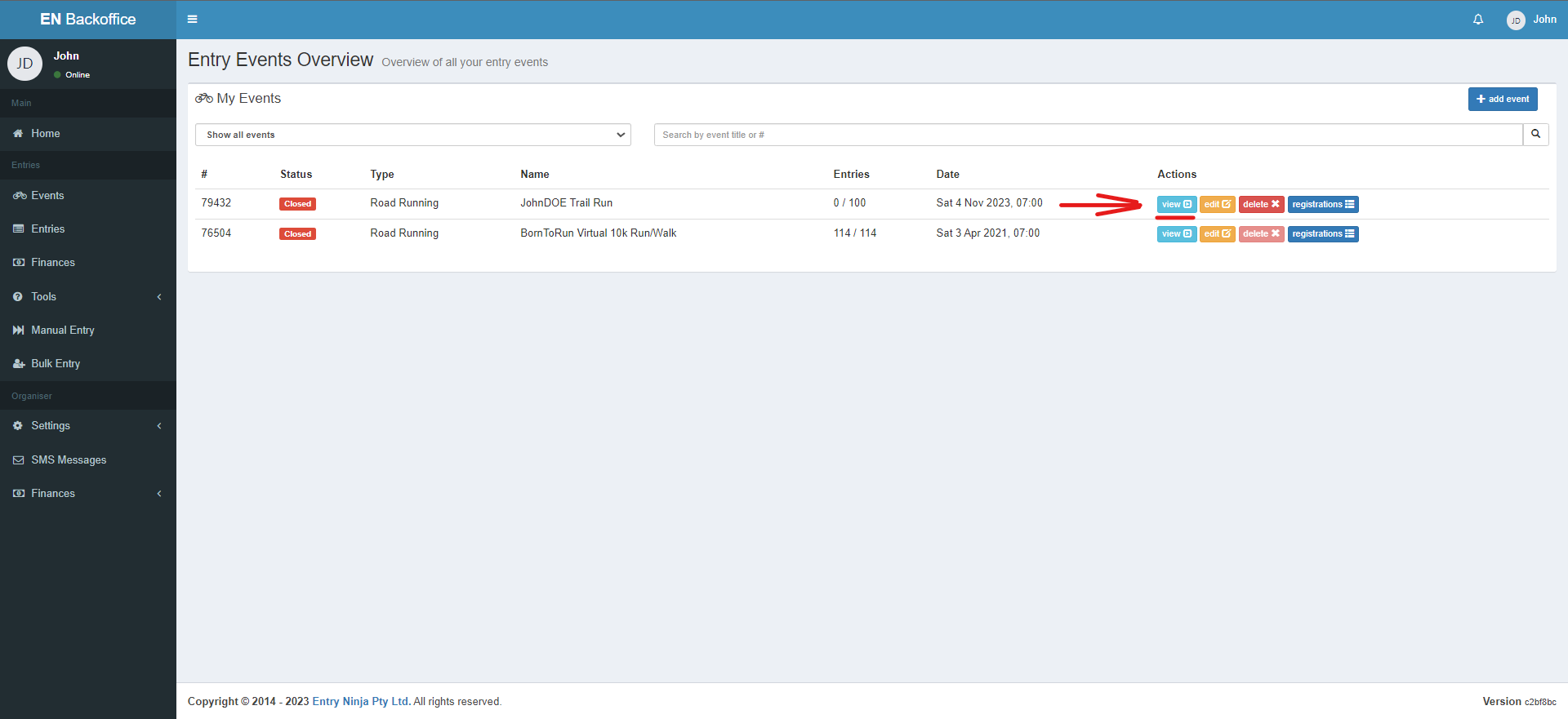
Step 1: Select the Event
Locate and choose the specific event for which you need to manage classes and prices.
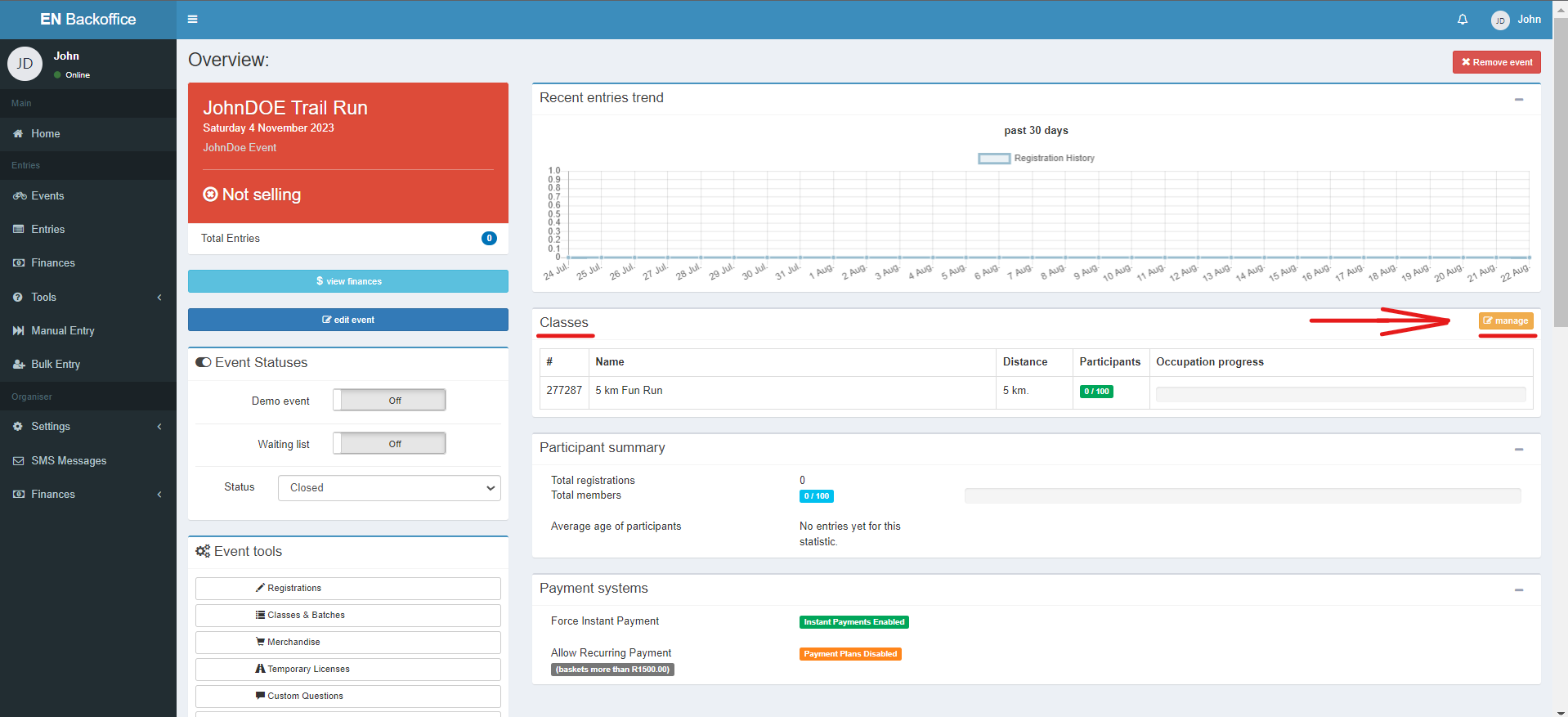
Step 2: Access Classes and Batches
Click on the "Manage" button located in the Classes and Batches section for the selected event.
Step 3: Manage Classes and Batches
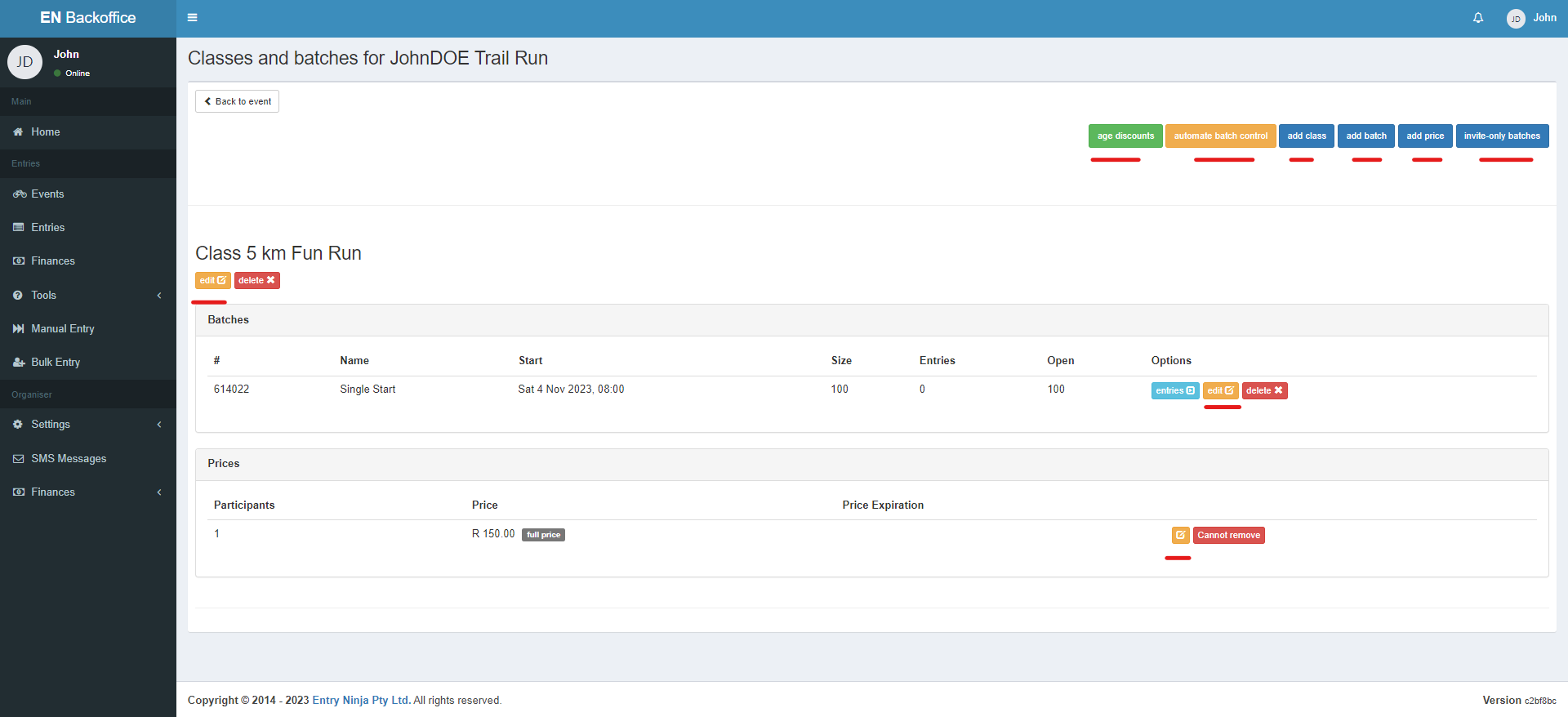
On the Classes and Batches page, you have various options:
- Edit Existing Class or Batch:
- To modify an existing class, click the orange "Edit" button under the respective class.
- To modify an existing batch, click the orange "Edit" button under the desired batch.
- Add New Classes and Batches:
You can add new classes and batches by following the provided hyperlink.
- Enable Age Discounts:
Customize age-based discounts for specific classes or batches.
- Automated Batch Control:
Set up automated batch control for efficient management.
- Invite-Only Batches:
Create invite-only batches to control participant access.
Step 4: Editing Prices
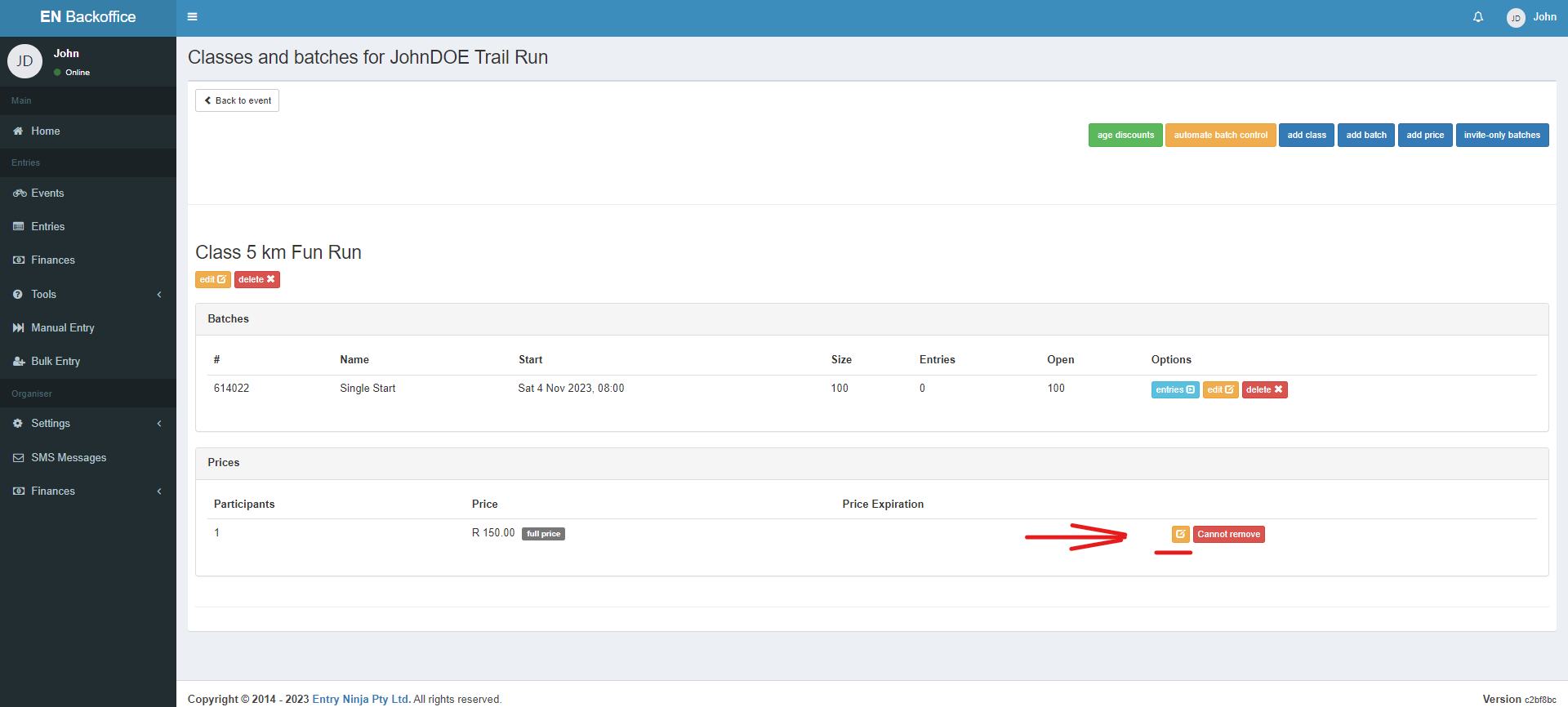
Note: Prices can only be edited if no entries have been received for that specific price option. If entries have been received, you'll need to add a new price option.
- Edit Existing Price:
If no entries have been received for a specific price, click the orange "Edit" button under that price to modify it.
- Add New Price:
If entries exist for a price you want to change, add a new price option. The new price will replace the old one. The old price will be marked with a date indicating when it stopped being active.